

How to Align Printer Heads for Clear and Sharp Prints
Print alignment plays an important role in producing clear text and accurate images. When printer heads are not aligned properly, output may appear blurry, uneven, or misaligned. This issue is common with inkjet printers and can develop gradually over time. Understanding how printhead alignment works and when it is needed helps maintain consistent print quality.
What Printer Head Alignment Means
Printer head alignment ensures that ink droplets are placed accurately on the page. Inkjet printers use multiple nozzles to spray ink, and even slight misalignment can cause overlapping colors, uneven lines, or blurred text. Alignment problems often occur after installing new ink cartridges, moving the printer, or after long periods of inactivity. Regular alignment checks help keep output sharp and readable.
Signs That Alignment Is Needed
Misaligned printheads usually produce noticeable symptoms. Text may appear doubled, images may look fuzzy, or straight lines may show gaps or overlaps. Color prints may appear slightly offset, especially in areas where colors overlap. Printing a test page is often the quickest way to confirm alignment issues. Test patterns highlight inconsistencies that are difficult to notice in everyday documents.
Using Built-In Alignment Tools
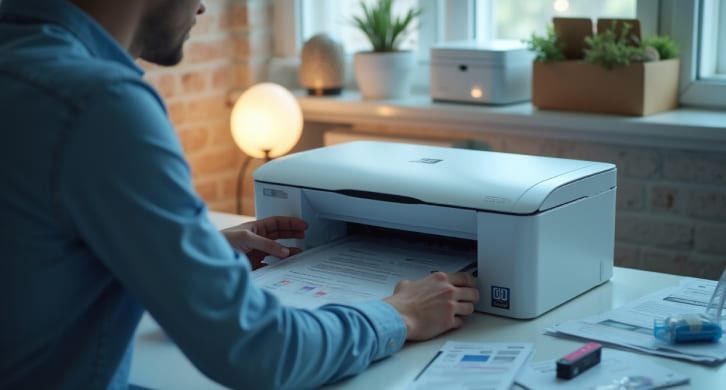
Most modern printers include built-in alignment utilities accessible through the control panel or printer software. These tools guide users through the alignment process step by step. The printer typically prints a test page with patterns or numbered sections. The user selects the clearest pattern, allowing the printer to adjust nozzle placement automatically. Following on-screen instructions carefully ensures accurate results.
Software-Based Alignment Options
In addition to control panel tools, alignment options are often available through the printer’s software on a connected computer. Accessing these tools through system settings or the printer application provides an alternative method for alignment. Software-based alignment is particularly helpful when printer displays are limited or when fine adjustments are needed.
Paper Choice During Alignment
Using the correct paper type during alignment is important. Plain, clean paper is usually recommended, as textured or specialty paper can interfere with pattern detection. Ensuring that the paper is loaded correctly and free of wrinkles helps the printer read alignment patterns accurately.
Environmental and Usage Factors
Environmental conditions can affect alignment over time. Temperature changes, humidity, and printer movement can cause components to shift slightly. Printers that are moved frequently or placed on unstable surfaces may require more frequent alignment checks. Keeping the printer on a stable, level surface helps maintain consistent alignment.
When Manual Alignment Is Not Enough
In some cases, alignment tools may not fully correct print quality issues. Persistent problems may be related to clogged nozzles or aging components rather than alignment alone. Running cleaning cycles before aligning can improve results. If print quality does not improve after repeated attempts, reviewing the printer’s maintenance guidelines may help identify additional steps.
Maintaining Alignment Over Time
Regular printing helps keep ink flowing evenly through nozzles, reducing the need for frequent alignment. Avoiding long periods of inactivity can help prevent ink drying or settling. Performing alignment after replacing cartridges or noticing changes in output quality ensures consistent performance.
Alignment Helps Maintain Print Precision
Proper printhead alignment is essential for producing clear, sharp prints. By recognizing alignment issues early and using built-in tools correctly, users can restore print accuracy without complex procedures. Regular checks and thoughtful maintenance help ensure reliable print quality over the life of the printer.