

Printer Not Detected by Computer and How to Resolve It
If a computer can't find a printer, it can stop working and make it hard to figure out what's wrong. This problem can happen with both wired and wireless printers, and it's usually not because the printer is broken but because of connection settings, program issues, or system configuration. Users can figure out what to do to fix printer detection problems by knowing what causes them.
Verifying Network and Physical Connections
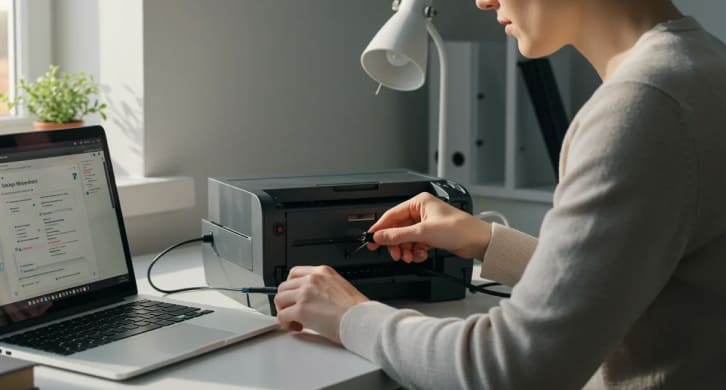
Check how the printer is connected first. A loose or broken cable can make it hard for a USB-connected printer to be found. You can rule out connection problems by unplugging and plugging the cable back in or using a different USB port.
If you want to use a wireless printer, both the printer and the computer must be on the same network. Even simple things, like one device using a guest network, can make it hard to find. You may check if the printer is connected by looking at its display or settings menu.
Power and Startup Readiness
The computer might not be able to see a printer that is still starting up or is in sleep mode right away. Before you try to do anything else, you need to allow the printer fully power on and finish any warm-up or initialization tasks. Restarting the printer and the computer can fix temporary problems with communication and make the devices recognize each other again.
Installation and Compatibility of Drivers
Printer drivers let the operating system talk to the printer. The computer could not even see the device if the right driver isn't installed. This happens a lot when you connect a new printer or use an operating system that has just been upgraded. You may find out if the printer is missing or has an error by looking at the system's list of installed printers. Installing or upgrading the right driver from the manufacturer's official website usually fixes problems with detection.
Operating System and Device Settings
The problem is not always with the printer; it can also be with the system settings. If you don't have authorization, the firewall rules, or the system components are out of date, your computer may turn off automatic device detection. Keeping the operating system up to date helps make sure that newer printer models will work with it. You can also check the device management or system settings to see whether the printer is recognized but not set up correctly.
Options for Network Discovery and Sharing
Discovery settings are particularly crucial for network printers. If network discovery is switched off, the computer might not be able to find printers that are connected correctly. By turning on network discovery and printer sharing in the system settings, the computer can detect and talk to printers that are connected to the network more consistently.
Print Queue and Choosing the Default Printer
Sometimes, the printer can be found but not set as the default device. When print jobs are sent to other places, this can make it look like the printer is not available. To make sure that print jobs go to the right printer, check the list of installed printers and set the right one as the default. Clearing out any tasks that are stuck in the print queue can also help get detection back to normal.
Interference Between Firewall and Security Software
Sometimes, security software can stop devices on a network from talking to each other. Firewalls can make it harder to find printers or send data, especially in offices or shared spaces. If you look at your firewall settings or security permissions for a short time, you might be able to tell if these technologies are stopping detection. Changes should be made carefully and in conformity with the rules for keeping the system safe.
Adding Printer Manually
Many systems let you add printers by hand if automatic detection doesn't work. This means choosing the printer model, typing in a network address, or picking a connection type right away. You have more control over manual configuration, and it can get around problems with discovery that are caused by network constraints or program conflicts.
When Problems with Detection Keep Happening
If the printer still isn't being found after verifying the connections, drivers, and settings, the problem could be with compatibility or network configuration. Reading the printer's user manual or system requirements can assist you find out what it can't do. If you have more than one printer installed and they are all trying to use the same system resources, you may also have problems that don't go away.
Most Detection Problems Are Configuration-Related
When a computer can't find a printer, it's usually because of problems with the connection, drivers, or system settings, not because the hardware is broken. Users may typically get their printers to work again by checking connections, upgrading software, and going over network and security settings. An organized approach cuts down on guesswork and helps solve the problem quickly.