

How to Connect a Wireless Printer to a New Network
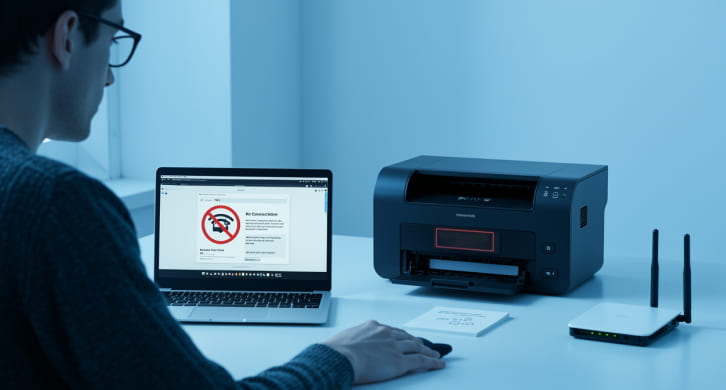
When you change a Wi-Fi network or router, you usually have to rejoin all of your wireless devices, including printers. Even though a printer is turned on, it may not respond to print requests if it is not correctly linked to a new network. Knowing how wireless printers connect to networks helps people finish the procedure without any problems with the connection.
Reconfiguring Printers After Network Changes
Wireless printers keep network credentials in their own memory. The printer keeps trying to connect with old Wi-Fi names and passwords, even when they are updated. Because of this, it could seem that the network is down or not available, even when it is running fine. This happens a lot when you move the printer to a new place, upgrade your router, or switch internet providers.
Getting the Printer Ready for Network Setup
Make sure the printer is on and within range of the Wi-Fi router before you join it to a new network. Having the new network name and password available can help keep things running smoothly during setup. Before adding a new connection, certain printers need to have their network settings reset. This removes old credentials and lets the printer look for networks that are still available.
How to Use the Printer's Control Panel
A lot of wireless printers come with a built-in control panel or display screen that lets you set up the network. Users can choose the new Wi-Fi network and type in the password immediately from the settings or network menu. It is vital to follow the on-screen directions attentively because if you don't, you might not be able to save the connection correctly.
Connecting with Setup Software or Apps
Some printers need setup software or mobile apps to finish setting up wifi. These technologies help the printer talk to the network through a linked device and walk users through the procedure. Getting the right setup software from the manufacturer's official website makes sure that everything works together and cuts down on mistakes when setting things up. When you set up the printer and the device, they should both be linked to the same network.
Verifying Network Compatibility
Not all printers function with all types of networks. A lot of models only work with 2.4 GHz Wi-Fi networks and might not be able to find connections that are just 5 GHz. Checking the settings on your router will help make sure everything works together. Firewalls and access limits are examples of network security settings that can also affect how well printers connect. Giving the printer access to the network helps keep communication consistent.
Checking the Connection
Printing a network or status report from the printer after setup is done is a good way to make sure the connection worked. A lot of printers additionally show the connection status on the control panel. Sending a test print from a connected device is another way to make sure that communication is working properly on the network.
Updating Printer Drivers After Reconnecting
Printer drivers on PCs or devices may still need to be updated after reconnecting to a new network. This makes sure that the system knows where the printer is on the network right now and sends print jobs to the right place. Taking the printer out of system settings and then putting it back in can assist in refreshing the connection and getting rid of stale network references.
How to Deal with Common Connection Problems
If the printer won't connect, rebooting the router, printer, and device can fix temporary problems. Keeping the printer close to the router during setup makes the signal stronger and more reliable. You avoid incomplete connections, make sure you properly enter your network credentials, and don't interrupt the setup process.
A Thorough Configuration Restores Wireless Printing
If you want to connect a wireless printer to a new network, you need to update the saved credentials and make sure they work with the new network. Users can get wireless printing again with little trouble by getting the printer ready, following the advised setup procedures, and checking the connection thereafter. A thorough technique makes sure that the printer can still be used by all devices on the new network.