

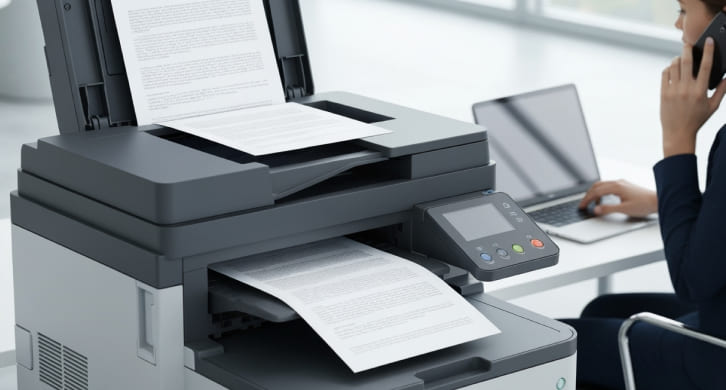
Scanner Not Working on All-In-One Printers: Common Causes
All-in-one printers are designed to handle printing, scanning, and copying from a single device. When the scanner function stops working while printing still operates normally, it can be confusing. Scanner issues are often related to software, connection settings, or configuration rather than a hardware failure. Understanding the common causes helps users identify where the problem may lie.
Connection and Communication Issues
Scanners rely on stable communication between the printer and the connected device. If the printer is connected wirelessly, temporary network interruptions or changes in network settings can prevent the scanner from being detected. For USB-connected printers, loose or faulty cables may allow printing but interrupt scanning functions. Reconnecting the cable or trying a different port can help confirm whether the issue is connection-related.
Missing or Incorrect Scanner Drivers
Scanning requires specific drivers and software that differ from standard print drivers. If the scanner driver is missing, outdated, or incompatible with the operating system, scanning features may not work even though printing does. Operating system updates can sometimes disable older scanner drivers. Installing the latest scanner software from the manufacturer’s official source often restores functionality.
Scanner Software and App Conflicts
Many scanners operate through dedicated software applications. If this software is corrupted, blocked by system permissions, or conflicting with other programs, scanning may fail to start. Closing unnecessary background applications and restarting the scanner software can help eliminate conflicts. In some cases, reinstalling the scanning application resolves persistent issues.
Device Permissions and System Settings
Modern operating systems require permission for applications to access hardware devices like scanners. If permissions are restricted, scan commands may not reach the printer. Checking system privacy and security settings ensures that scanning software has access to the device. This is especially important after system updates or software changes.
Printer Status and Error Conditions
Scanning functions may be disabled if the printer detects an error condition such as an open cover, paper jam, or supply issue. Even if printing appears unaffected, internal alerts can block scanning operations. Reviewing the printer display or status messages helps confirm whether the device is fully ready for scanning tasks.
Network Scanner Discovery Problems
In shared or office environments, scanners may need to be discovered over the network before use. If network discovery settings are disabled, the computer may not locate the scanner. Ensuring that network discovery and sharing options are enabled allows the scanner to appear as an available device.
Scanner Glass and Hardware Checks
While less common, physical factors can also affect scanning. Dust or debris on the scanner glass may interfere with detection or cause incomplete scans. Cleaning the glass gently with a lint-free cloth helps ensure accurate scanning and prevents sensor interference.
Testing with Built-In Functions
Almost all-in-one printers allow scanning directly from the control panel without a computer. Testing this function helps determine whether the issue is software-related or hardware-related. If standalone scanning works, the problem is likely with the computer or software configuration rather than the printer itself.
Re-Adding the Scanner Device
Removing and re-adding the scanner in system settings can refresh communication paths and resolve detection problems. This process forces the system to re-establish the connection using current drivers and network settings.
Scanner Issues Are Often Software-Related
When the scanner on an all-in-one printer stops working, the cause is usually related to drivers, software, or connectivity rather than hardware failure. By checking permissions, updating scanner software, and verifying connections, users can often restore scanning functionality with minimal effort. A methodical approach helps isolate the issue and return the device to full use.